Tools · 9 min read
How to Block Games on PC So the Block Actually Holds
Blocking a game on your own PC takes a minute. Keeping it blocked is the hard part, because whoever sets a block can lift it. Here is every way to do it, ranked by how hard it is to undo.
Contents8 sections
You can block games on PC in four ways: with Windows settings, with a launcher's own controls, with blocker software, or with an app that limits play instead of stopping it outright. For a child's PC, Microsoft Family Safety does most of the job for free. Working out how to block games on PC for yourself is harder, and not because the steps are difficult: whoever sets a block can also lift it, so the method that matters is the one that is hard to undo on the evening you want to play.
Every method below was checked against its maker's own pages in November 2026. One of them, Gaming Reset, is our own product, and we say so where it comes up. If Steam is the launcher you want to rein in, our guide to limiting game time on Steam goes deeper on Steam's own settings.
Every way to block games on PC, compared
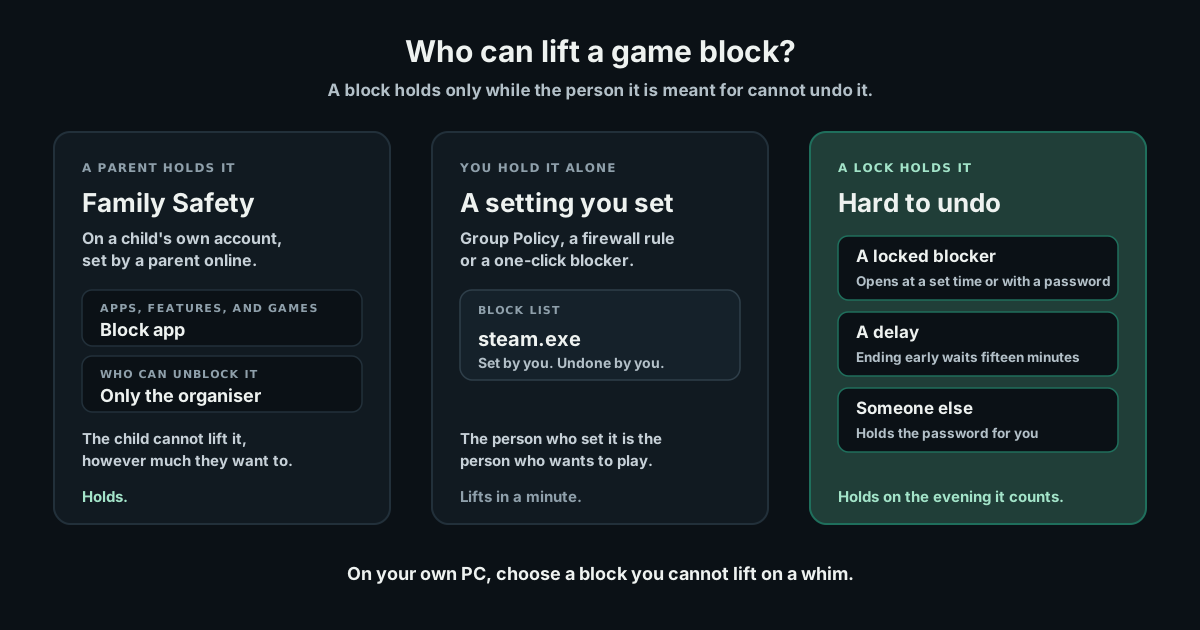
The last column is the one to read twice. A block only holds if the person it is meant for cannot lift it in a minute.
| Method | Best for | What it blocks | How hard it is to undo |
|---|---|---|---|
| Microsoft Family Safety | A child's account | Any app or game, or its daily time | Hard for a child. An adult can switch it off |
| Group Policy setting | Your own account on Windows Pro | Programs opened from File Explorer, by file name | Easy. The same setting turns it off |
| Firewall rule | Online games | A game's internet connection, not the game | Easy for whoever made it |
| Steam Families | A child's Steam account | Steam play by hours and days | Only an adult can grant more |
| Cold Turkey Blocker Pro | Your own PC | Apps on a schedule, or after set minutes a day | Hard once the block is locked |
| Freedom | Your own PC and phone | Apps and sites on a schedule | Hard in Locked Mode |
| Cisdem AppCrypt | A shared PC | Apps behind a password, on a schedule | Easy if you know the password |
| HT Parental Controls | A child's PC | The games category or chosen games, by schedule or daily time | The parent holds it |
| Game Blocker (Microsoft Store) | A quick break | Listed games, launchers and sites | One click turns it off |
| Gaming Reset (ours) | Your own PC, every launcher | Launchers during blocks you start, plus a daily limit | Ending a block early waits fifteen minutes |
How to block games on Windows 11 and 10 without extra software
Windows has three built-in ways to block a game, and each was built for a different job.
Microsoft Family Safety, for a child's account
Family Safety blocks an app or game for one member of a family group, on the Windows PCs they sign in to with their own Microsoft account, and only the group's organiser can block or unblock it. Microsoft's steps for blocking an app are short: sign in at account.microsoft.com/family, choose your child, choose Windows, open Apps, features, and games, then select Block app beside the game. To limit a game rather than block it, Family Safety's app and game limits give each app a daily time and allowed hours.
It is a poor fit for limiting yourself. Microsoft's page on Family Safety settings for adults says an adult member can switch off whatever limits an organiser has set, and that adults cannot set limits for themselves.
A Group Policy setting, for your own account on Windows Pro
To disable a game for your own account, Windows Pro, Enterprise and Education include a setting called Don't run specified Windows applications. Open the Local Group Policy Editor (gpedit.msc), go to User Configuration, Administrative Templates, System, set it to Enabled, select Show and type the file name of each program you want blocked, such as steam.exe. Windows Home does not include it.
The catch is in Microsoft's own description of the setting: it "only prevents users from running programs that are started by the File Explorer process". A game that Steam starts is started by Steam, so block the launchers rather than the games. And because you set it with your own administrator account, you can switch it off just as quickly.
A firewall rule, for online games
To block online games on PC, Windows Defender Firewall with Advanced Security can cut one program off the internet with an outbound rule: choose the game's .exe file and block the connection. Microsoft's guide to firewall rules notes that an explicit block rule takes precedence over any allow rule, and that a rule needs the full path to the program. An online game with no connection will not get you into a match, but it still opens, and an offline game is not affected at all.
How to block games on a child's PC
For a child, two layers cover most of it. Family Safety covers Windows itself, and Steam Families covers their Steam account, with limits for each day of the week that only an adult can lift. Other launchers have parental settings of their own, set inside each launcher.
If you would rather block all games on a computer in one place, parental-control software does that. HT Parental Controls can block or limit the whole games category, or chosen programs, by schedule or by a maximum daily time, and is free to try for 14 days.
Software to block games on PC
For your own PC, the question to ask of any blocker is what it takes to turn it off. Here are the ones worth knowing, strongest lock first.
Cold Turkey Blocker
Cold Turkey Blocker is the strongest of them. Its Pro version, a one-time purchase for Windows and macOS, blocks apps on a schedule or lets a blocked app run for a set number of minutes a day, and a locked block cannot be edited or deleted until its lock opens: at a time you set, after typing out random text, after a restart, or with a password. Locking also stops the uninstaller from working. Steam runs as several programs, so Cold Turkey's user guide suggests blocking the Steam folder rather than one file.
One catch for games: those minutes only count while the blocked app is in front and the mouse has moved in the last three minutes, so a game played on a controller may barely use them.
Freedom
Freedom's app and site blocker blocks apps and websites on a schedule across your computer and phone, and its Locked Mode stops you ending a session early. It is a yearly subscription, with a one-time lifetime option, and its page describes schedules rather than a daily number of minutes.
Cisdem AppCrypt
Cisdem AppCrypt locks games and apps such as Steam behind a password, and can lock them on a schedule. It works best when someone else holds the password, and every feature is free to try for three days.
Game Blocker, free on the Microsoft Store
Game Blocker on the Microsoft Store is a free game blocker for PC that keeps a list of games, launchers and websites closed, switched on or off with one click. One click is also all it takes to undo, so it suits a deliberate break more than a hard limit.
Apps that limit game time instead of blocking it
A block decides in advance that tonight is off. An app to control game time lets you play, then holds a line, which is often closer to what people actually want.
This is the gap Gaming Reset was built for, and since it is our own product, weigh this section with that in mind. Its Windows app puts a small window on screen when Steam or the Riot Client opens, or a game starts from the Epic Games Launcher, Battle.net or your own list, with your own mission for the hour first. For the nights you can see coming, you can start a block of one to twelve hours, during which supported launchers close as soon as they open. Ending a block early takes fifteen minutes to kick in, and you get one early end a day.
Your daily limit starts from your own average and is never zero, and play beyond it costs an hourly rate you choose when you save your card, with $5 an hour suggested. There is no subscription fee, a week inside your limit costs $0 as long as you do not quit the app from the tray, which costs $8, and your first 2 days need no card. How the app holds a limit on PC walks through it, the pricing page has worked examples, and the Windows app page lists what it needs to run.
Other apps take narrower jobs. Beeminder's Steam integration puts money on your Steam hours and charges the pledge you chose if you go over, Sentinel Signal on the Steam store is a $4.99 timer for Steam games, and Gaming Gaiden on GitHub is a free tracker that records your sessions without limiting anything.
Why blocking your own games so often fails
Blocking is the default answer to wanting less of something on a screen. In a 2019 review of digital self-control tools, researchers looked at 367 apps and browser extensions and found some form of blocking in 74 percent of them, far more than any other approach. They also noted that many had not been evaluated for whether they work. Those were phone and browser tools rather than PC game blockers, but the pattern is familiar.
Saad, who writes this blog, found the same with uninstalling, the bluntest block there is: he tried it more than once, and the games were always back within a few weeks. A block you set yourself is a decision made in advance by a calm version of you, and the person who meets it at 9pm can usually lift it.
So a block holds when one of three things is true: someone else holds the key, the lock takes real time or effort to open, or going past it costs something you agreed to in advance. Uninstalling meets none of them, which is the reinstall trap we went through for Valorant. If late nights are the problem, how to stop playing video games at night covers that session on its own.
Which way to block games fits you
- You are blocking games on a child's PC: Microsoft Family Safety on their account, plus Steam Families if they play on Steam.
- You want games gone from your own PC: a locked block in Cold Turkey Blocker Pro, or a password someone else holds.
- You want certain nights off: a schedule in Cold Turkey or Freedom, or a block you start in Gaming Reset.
- You want to keep playing, just less: an app that limits game time, such as Gaming Reset, or Beeminder if you only play on Steam.
- You only want online play off: a firewall rule for the game.
Whatever you choose, test it with one question: on the evening you most want to play, who can lift the block, and how long would it take them? If the honest answer is you, in a minute, it is a reminder rather than a block.
Frequently asked questions
How do I block games on Windows 11?
For a child, use Microsoft Family Safety: sign in at account.microsoft.com/family, choose the child and Windows, then select Block app beside the game. For your own account on Windows 11 Pro, the Group Policy setting Don't run specified Windows applications blocks programs by file name, but only those opened from File Explorer. On Windows 11 Home, use a blocker app such as Cold Turkey.
What is the best software to block games on PC?
It depends on who the block is for. For a child, Microsoft Family Safety is free and HT Parental Controls adds categories and schedules. For yourself, Cold Turkey Blocker Pro is the hardest to undo once a block is locked, Freedom suits schedules across devices, and Gaming Reset limits play across launchers rather than blocking it outright.
How do I block online games on PC?
Add an outbound rule in Windows Defender Firewall with Advanced Security that blocks the game's .exe file from connecting, using its full path. A block rule takes precedence over allow rules. It stops online play only: the game can still open, and offline games are not affected. For games played in a browser, use a blocker that also blocks websites.
Can I block games on my own PC?
Yes, but you hold the administrator password, so most blocks you set can also be lifted by you in a minute. Pick one that is hard to undo: a locked block in Cold Turkey, a password someone else holds in Cisdem AppCrypt, or a block that takes fifteen minutes to end early, like the blocks in Gaming Reset.
How do I block games on my child's computer?
Give your child their own Microsoft account in your Family Safety group and have them sign in to Windows with it. You can then block apps and games, or set a daily time for each, from account.microsoft.com/family or the Family Safety app. If they play on Steam, add their account to a Steam Family as a child and set playtime limits there too.
Is there an app to limit game time on PC?
Yes. For a child, Microsoft Family Safety sets a daily time for each game. For yourself, Cold Turkey Blocker Pro can allow a set number of minutes a day before blocking, and Gaming Reset holds a daily limit across Steam, Epic, Riot and Battle.net, with an hourly rate you agree to for going over. Beeminder does a version of this for Steam hours.
Does blocking Steam block all my games?
Blocking the Steam client stops games that need Steam to start, but a game that runs on its own from its folder needs its own entry, and games from Epic, Riot and Battle.net need their own launchers blocked too. Cold Turkey suggests blocking the Steam folder rather than a single file, because Steam runs as several programs.