Tools · 14 min read
How to Limit Gaming Time on PC When Nobody Else Holds the Password
Windows and Steam both have time limits, and both assume someone else sets them. Here is what works when the limit is yours, and how our Windows app holds it at the moment a game opens.
Contents12 sections
You have set a gaming limit before. Two hours on weeknights, nothing after eleven, weekends only. You meant it when you said it. Then Steam opened at nine on a Tuesday, and the limit turned out to live somewhere you were not looking. If you are working out how to limit gaming time on PC and the person the limit is for is you, the usual advice breaks in one very specific place, and it is worth seeing exactly where.
This guide covers what Windows and Steam already offer, why those tools were built for a different situation from yours, and the three things any limit has to do if it is going to survive a bad evening. It also walks through how the Gaming Reset Windows app handles each of the three, in enough detail that you can judge whether it fits you, and what to do instead if it does not.
Why a limit you set for yourself is so easy to undo
Every time limit has two roles in it: the person who sets the limit and the person who lives inside it. Parental controls work because those are different people. The parent holds the password, the child hits the wall, and arguing with a settings screen gets nobody anywhere.
When the limit is for yourself, both roles belong to you, and they do not belong to the same version of you. The limit is set by the calm one on a Sunday afternoon. It is enforced, or not, by the tired one at 9pm who has just opened Steam and has a perfectly reasonable case for one exception. Every self-set limit can be lifted by the exact person it was meant to hold, at the exact moment they most want it lifted.
It also helps to be honest about how that moment works. Most evenings, opening the launcher is not a decision you consciously make at all. A large share of what people do each day runs on habit, cued by the same time and the same place, which is a big part of why willpower keeps losing to games built like Dota. A limit that lives only in your head has to win an argument that, on most nights, never actually takes place.
What Windows and Steam already offer
Windows does have a built-in way to limit time in games. Microsoft Family Safety lets the person who manages a family group set a daily allowance for specific apps and games, and the limit follows that member across Windows, Xbox and Android. Microsoft's own guide to app and game limits describes the flow: you sign in to Family Safety, choose a family member, and set how long they can use a given app.
Steam has playtime limits too, and they live in the same kind of place. They are part of Steam Families, which, in the words of Steam's support page for Steam Families, lets adult members set parental controls for child members. The limit is designed to be set by one person for another.
Both tools are good at the job they were built for, and both assume two people. You can recreate the second person, and for some adults it genuinely works: give a partner the Family Safety password, or let a housemate own the Steam Family. But most people searching for this are not going to hand someone the keys to their own PC, and a limit you can lift with your own password is the self-set limit again, with extra steps.
The other common options leave a gap of their own. Uninstalling removes a few minutes of friction, which is why the reinstall arrives so reliably, as we found writing about the reinstall trap in Valorant. A blocker that shuts your launchers on a schedule does real work on the nights you planned for, but it decides in advance and then has nothing to say at the moment you are actually choosing. Each of these does one useful job. A limit that holds needs three.
The three jobs any time limit has to do
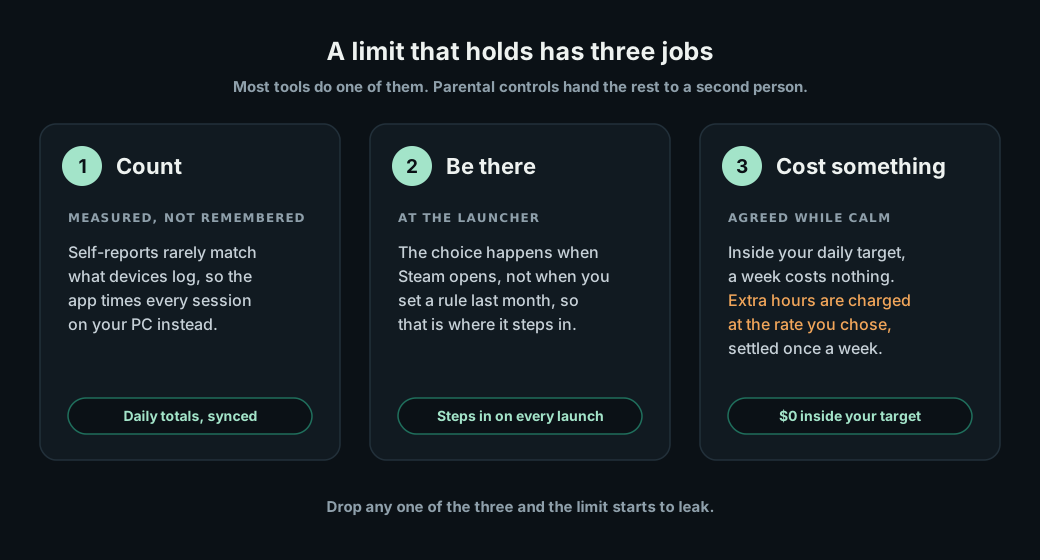
Strip the tools back and a limit on your own gaming has three separate jobs. Most approaches do one of them well, which is why a single tool so rarely holds on its own.
- 01
Count honestly. You need the real number, measured rather than remembered, because the remembered one is almost always kinder than the truth.
- 02
Be present at the decision. The decision is made when the launcher opens, so that is where a limit needs to be, not in a settings page you configured last month.
- 03
Make going over cost something you agreed to in advance. A limit that costs nothing to break gets renegotiated for free, by the version of you least interested in keeping it.
Job one: count the hours you actually play
People are reliably bad at estimating their own screen time. A 2021 meta-analysis of 106 comparisons between what people reported and what their devices logged found the two only moderately related, with self-reports rarely an accurate reflection of the logs. Questionnaires designed to measure problematic use lined up with the logs even less well.
That gap matters more for gaming than for almost anything else, because a session has no natural end and a whole evening blurs into one block. Two hours that were really three and a half is the most ordinary mistake in the world, and you cannot keep a limit you cannot see yourself breaking.
So the Gaming Reset Windows app measures it instead of asking. It detects games from Steam, the Epic Games Launcher and the Riot Client automatically, and you can add any other game yourself in the app's settings. It times each session on your PC and syncs a daily total to your account, where your dashboard shows the last seven days. A day the app was not running is marked as not tracked rather than guessed at, and it is never charged.
If you want to see your own number before committing to anything, track one honest week first, starting with where each launcher keeps your hours, or put your daily average into the gaming time calculator. Counting is also the first step in our honest answer to how many hours of gaming is too much, and the gap between the week you expected and the week you had is usually the most useful thing you will learn.
Job two: be there the moment a game opens
This is the job almost nothing else covers, and it is the one the app was built around.
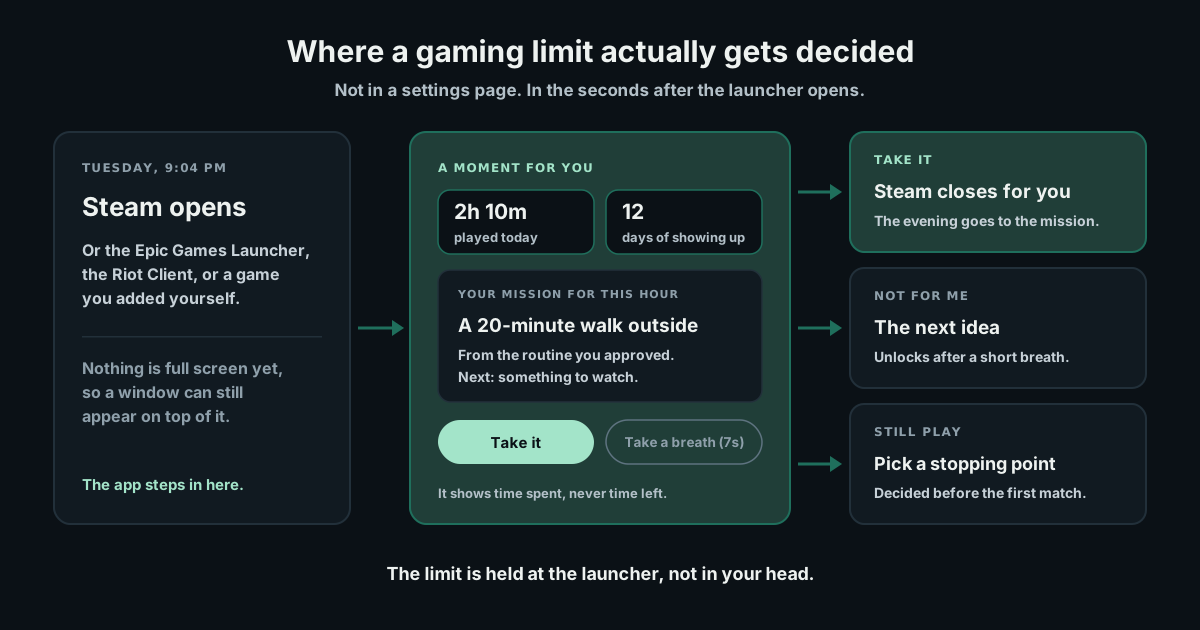
When Steam, the Epic Games Launcher or the Riot Client opens, or a game you added starts, a small window appears on top of it. The timing is deliberate. Once a game takes over the display in exclusive full screen, no ordinary window can draw over it, and by the time a match is loading the decision has already been made. At the launcher you are still choosing, so that is where the app steps in.
The window opens with what is actually at stake: how long you have already played today, and how many days in a row you have shown up for your routine. It never tells you how much time you have left, because "two hours left" reads as permission to someone who was about to stop after forty minutes.
Then it shows a short run of cards, one at a time:
- Your own mission for this hour, from the weekly routine you approved when you set up your account. It comes first because it is the one thing on the screen you already decided you wanted.
- Something to watch, with a first step small enough to start: the first ten minutes of a film, or episode one of a series. If you are following a series on your dashboard, it can be your next episode.
- More ideas written for you from your setup answers and the games you open most.
Take any card and the app closes the launcher or the game for you, so the choice you just made is the one that actually happens. It tells you it will do that before you click, not after.
Skipping is allowed, just not instantly. The button to move on, "Not for me. What else?", stays locked for a short breath on every card, seven seconds by default, and closing the window with Alt+F4 waits too. You can set the pause anywhere from zero to sixty seconds. It only ever sits on the way out: taking a suggestion is always immediate.
If you reach the end and still want to play, you can. The last screen asks you to choose your stopping point before you begin, so the decision about when to stop is made by the version of you who is not yet three games deep. That is an if-then plan, and few tools in behaviour change have more evidence behind them. Peter Gollwitzer and Paschal Sheeran's meta-analysis of 94 studies found that turning an intention into a specific plan of that kind had a medium-to-large effect on whether people followed through.
Does a few seconds of pause really change anything? The closest test comes from phones rather than PCs. A six-week field study published in PNAS followed 280 people using one sec, an app that puts a short pause and a way out in front of apps people want to use less. On average, 36 percent of the time someone tried to open a target app, they closed it again after the pause. Their attempts fell by 37 percent over the six weeks, and by the end they were opening those apps 57 percent less.
A follow-up experiment in the same paper pulled the pieces apart. The option to back out did the most work, the delay helped as well, and the message prompting people to reflect did not help. That was phones and social media, not games on a PC, so hold the numbers loosely. But it is the same moment and the same two ingredients the launch window is built on: a real way out and a short wait, with the way out pointed at something you already chose to do.
What happens once you hit your daily target
The window changes once you are at or past your target for the day. Instead of starting with suggestions, it starts with the choice that matters. One button says "Close the game. Keep the rest of my day." The other unlocks after the same short breath and shows you something else to do.
If you still choose to play, the app can close that game for you an hour later. This is something you switch on for one session at a time. You tick a box that spells out that closing a game can lose unsaved progress and can earn a penalty in an online match, you get a warning at five minutes and again at one, and you can cancel it from the app. It never starts just because you reached your target. Crossing a number does not close your game.
While a session runs, the app checks in every hour with a Windows notification that measures the day against the target you agreed to. Windows can hold notifications back while a game is full screen, so the tray icon also shows how long the current session has been going whenever you hover over it.
Job three: make going over cost something
A limit that costs nothing to break gets renegotiated at the worst possible time. So the third job is a price, agreed while you are calm, that the 9pm version of you inherits rather than sets.
Gaming Reset has no subscription fee. You save a card through Paddle at the end of setup, which costs $0, and a week where you stay within your daily target and confirm no exits from the tray costs $0 too. Play beyond your target is charged at an hourly rate you choose and confirm during setup, with $4 an hour suggested, and part hours are prorated. Everything is added up and charged once a week, after the week ends, with no weekly cap. The pricing page has worked examples.
Your daily target is set from your own starting point when you join, not from a universal number. It only changes if you accept a new one, and a new target always starts on a Monday, so each week is measured against one number you agreed to.
Quitting the app is part of the same agreement, because an app you can close for free is a limit you can close for free. If you choose Quit from the tray, a dialog tells you it is an intentional exit that adds $4 to the week, shows the week's total so far, and makes keeping the app running the default. Closing the window, shutting down, restarting, updates, crashes and ending it in Task Manager never count.
Blocks for the nights you can see coming
Some evenings you know in advance are risky: a night alone, a deadline you are avoiding, a Friday after a bad week. For those, the app has a block you start yourself, for anything from one hour to twelve. While it runs, supported launchers are closed as soon as they open.
You can end a block early, but the request takes fifteen minutes to take effect and you get one early end a day. Fifteen minutes is long enough to outlast most urges and short enough not to trap anyone who set eight hours by mistake. The block is saved, so restarting your PC does not clear it.
It is a speed bump rather than a wall, and it is honest about that. While the app is closed nothing enforces the block, and closing it from the tray is the confirmed exit with the fee attached. Any launcher blocker can do this part of the job. The difference is that this one sits next to the count and the launch window rather than on its own. If late nights are the specific problem, how to stop playing video games at night goes through why that session is its own kind of hard.
What the app does not do
A program that watches for games deserves some suspicion, so here is exactly what it touches and what it does not.
- It reads the names of running programs, the same list Task Manager shows, to notice a launcher or a game starting.
- It does not read your screen, your keystrokes or your files.
- It does not look inside games at all. There is no code injection and no driver, and it never pauses a game.
- It closes a game or launcher only when you have asked it to: by taking a suggestion, by switching on the one-hour auto-close, or during a block you started.
- It installs for your Windows user from the Microsoft Store, with no admin rights and no background service, and you decide whether it starts with Windows.
- Your account receives daily totals, session times, confirmed exits and the choices you make at launch. A game's name is sent only when the app steps in on it, to personalise the ideas, and those launch records are deleted after 60 days.
Detection is best effort, and some setups or protected games may not be picked up, which is why you can add games by hand. Console and phone play are not tracked. The app needs Windows 10 22H2 or Windows 11 on a 64-bit PC, and the full requirements are on the Windows app page, with the data side covered in the privacy policy.
How to set it up
- 01
Answer the setup questions on the website. How much you play, what your days look like and what you want more time for. Your daily target and a draft routine come from those answers.
- 02
Review your routine. Keep, edit or swap each mission before you approve it. These are the missions the launch window offers first.
- 03
Install the Windows app and sign in with the same account. It is distributed through the Microsoft Store and runs from the Windows tray.
- 04
Save a card and confirm your rate. Paddle stores the card, saving it costs $0, and this is the step that turns the agreement on.
- 05
Add anything it missed. If a game you play is not detected, add it in the app's settings so the launch window covers it too.
If you would rather not use an app
Plenty of people limit their gaming without software, and the three jobs still apply. Count with a note on your phone for a week. Move the decision to the moment it happens with an if-then rule, such as "if it is a weeknight, I do not open Steam", which holds far better than "play less". Our guide to playing video games in moderation shows how to write one that survives a Thursday. For the cost, tell one person the rule and ask them to check in with you about it.
And if there is someone you trust to hold a password, Microsoft Family Safety with them in charge of the family group is a perfectly reasonable setup. The app is for the far more common case, where the only person in the room when the launcher opens is you.
Limiting gaming time on PC was never really about finding the right number. It is about who is present when the launcher opens at nine on a Tuesday. For most adults that has only ever been one person, deciding alone, at the worst possible moment. Doing all three jobs means that decision no longer has to be made that way.
Frequently asked questions
Can you set a time limit on PC games for yourself?
Yes, but the built-in tools are designed for one person to set limits for another. Microsoft Family Safety and the parental controls in Steam Families both assume someone else manages the account. On your own, the options are an if-then rule you keep yourself, a launcher blocker, or an app like Gaming Reset that measures your play, steps in when a game opens and attaches an agreed cost to going over.
Does Steam have a playtime limit for adults?
Steam's playtime limits are part of the parental controls in Steam Families, which adult members set for child members. They are built for a parent and a child rather than for an adult limiting their own account. An adult who wants a limit on Steam needs something outside Steam, such as a rule they keep, a blocker, or an app that steps in when the Steam client opens.
Will the Gaming Reset app close my game when I hit my limit?
No. Reaching your daily target never closes a game on its own. The app closes a game or launcher only when you ask it to: by taking one of the suggestions when a game opens, by choosing to close it, by switching on the optional one-hour auto-close, or during a block you started yourself. It warns you first, because closing a game can lose unsaved progress.
Can the app see my screen or what I type?
No. It reads the names of running programs to notice a launcher or game starting, and never your screen, keystrokes or files. Your account receives daily totals, session times, confirmed exits and the choices you make at launch. The name of a game is sent only when the app steps in on it, and those launch records are deleted after 60 days.
Which games and launchers does it work with?
It detects games from Steam, the Epic Games Launcher and the Riot Client automatically, which covers League of Legends and Valorant, and you can add any other Windows game by hand in its settings. Detection is best effort, so an unusual setup may need adding manually. Console and phone play are not tracked. It runs on Windows 10 22H2 or Windows 11, 64-bit.
Does it interfere with games or anti-cheat?
It is built to stay outside the game. It reads which programs are running, the same list Task Manager shows, and does not inject code, install a driver, look inside a game or pause a game process. The only thing it ever does to a game is close it, and only when you have asked it to, so save your progress before you confirm.
How much does it cost to limit gaming time with Gaming Reset?
There is no subscription fee. Saving a card costs $0, and a week inside your daily target with no confirmed exits from the tray costs $0. Extra play is charged at the hourly rate you choose during setup, with $4 suggested, and part hours are prorated. A confirmed exit from the tray is $4. Charges are added up and taken once a week, and there is no weekly cap.