Tools · 12 min read
How to Limit Game Time on Steam, Even on Your Own Account
Steam can put a playtime limit on a child account and nowhere else. Here is exactly how those limits work, and what holds when the limit is for you, Steam Deck included.
Contents10 sections
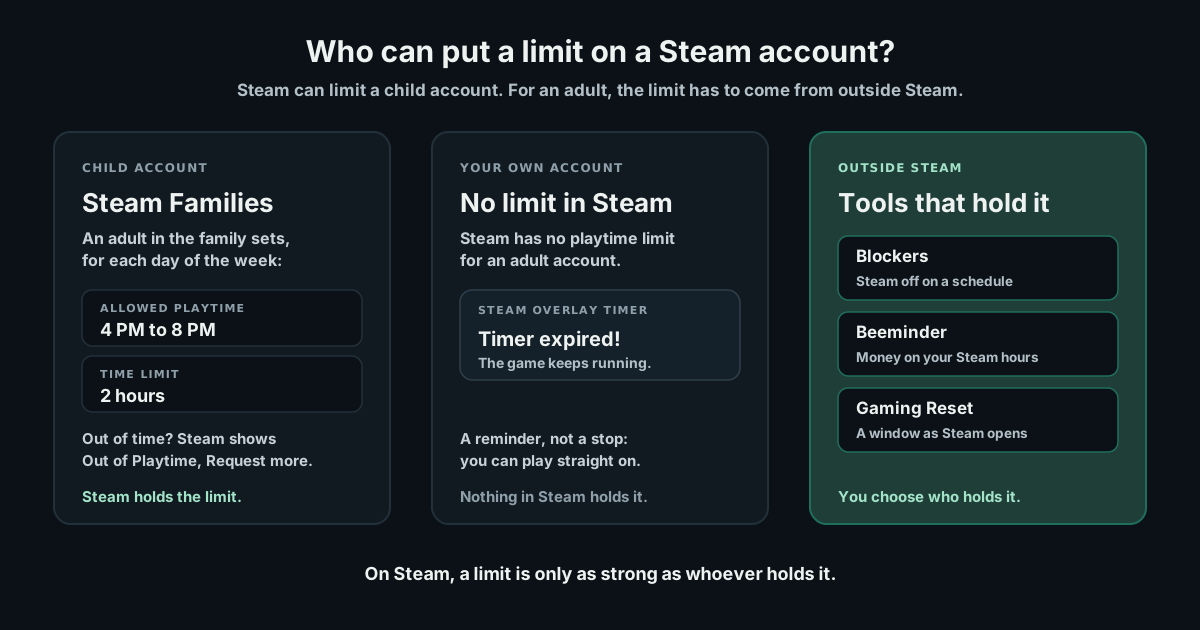
Can you limit game time on Steam? Only on a child account: Steam's playtime limits are parental controls in Steam Families, set by an adult in the family, and nothing in Steam lets an adult put a limit on their own account. So how to limit game time on Steam comes down to whose time it is, and this guide covers both cases: the exact steps for a child's account, and what actually holds when the limit is for you.
Every Steam detail below was checked in November 2026 against Valve's own help pages and the Steam app itself, since many guides still describe Family View, which Steam Families replaced in 2024. One option near the end, Gaming Reset, is our own product, and we say so there.
Can you limit game time on Steam? The options compared
Here is every option in one place. The second column answers the question most people are really asking: does it work when the account is yours?
| Option | On your own account? | What it limits | How easy it is to get round |
|---|---|---|---|
| Steam Families | No. An adult sets it on a child account | Hours a day and which hours, for each day of the week | Not from the child account. An adult can grant more time |
| Steam overlay timer | Yes | Nothing. It tells you when your time is up | Ignore it and keep playing |
| Microsoft Family Safety | No. An adult can switch off limits set on them | Time in each app or game, on Windows, Xbox and Android | Easy for an adult, hard for a child |
| Cold Turkey Blocker Pro | Yes | Steam on a schedule, or after a set number of minutes a day | Hard once the block is locked |
| Freedom or Cisdem AppCrypt | Yes | Steam on a schedule, or behind a password | Depends on who holds the lock or the password |
| Sentinel Signal | Yes | A daily time budget for Steam games, with reminders | Easy. Saved time can extend a session |
| Beeminder | Yes | Hours on Steam, per game or in total, with money at stake | You can play on, and pay if you go over |
| Gaming Reset (ours) | Yes | A daily limit across Steam, Epic, Riot and Battle.net | You can play on, and extra hours cost the rate you agreed |
How to set a playtime limit in Steam Families
Steam Families replaced Family View and Family Sharing in 2024. Valve's guide to Steam Families describes two roles: adults set parental controls, playtime limits included, and only child members are subject to them. You can manage it from the Steam app, the website or the Steam Mobile app.
- 01
Create the family. On the Steam website, go to Account Details, then Family Management, and choose Create a Family. In the Steam app, start from Settings, then Family.
- 02
Invite your child's account. Choose Invite a Member, find the account in your friends list or by friend code, and pick Invite as Child. You confirm by email or in the Steam Mobile app, your child accepts, and you confirm once more.
- 03
Turn on parental controls. Back in Family Management, open Manage, expand your child's entry and switch on Enable Parental controls.
- 04
Set the hours. In the Playtime Limits tab, switch on Set playtime limits. For each day of the week, set the Allowed playtime, the hours when play can happen, and a Time Limit, from 0 hours to Unlimited.
- 05
Check the other two tabs. Allowed Games decides which games the account can open, and Settings covers the store, chat, the community and, on a Steam Deck, the SteamOS desktop.
Near the limit, Steam warns your child. When time runs out, it shows Out of Playtime with a Request more button, and games will not start: "You've used all of your available minutes for today", or outside the allowed hours, "You've been blocked from playing at the current time".
Requests reach the Requests tab, where, as Valve's announcement of Steam Families puts it, adults approve or deny them, granting extra time or changing that day's hours. A child who is offline is told to go online to ask. A Playtime tab shows what each child played on any day, the only day-by-day view of playtime in Steam.
Two things to know before relying on it. Steam's time limits only cover Steam, so other launchers and browsers sit outside them. And Valve does not say whether a game already running gets closed when time runs out, so treat it as a limit on starting games and check how it behaves on your setup.
Can an adult join a Steam Family as a child?
This is the workaround people ask about: someone you trust creates a family, invites your account as a child and sets the limits. It works, because whoever sends the invite picks the role. But Steam's own warning on the screen where you confirm is blunt: joining as a child gives "any Adult in the Steam Family FULL CONTROL over your account", and if the invite did not come from your parent or guardian, "it is likely a scam".
Here is what you would be agreeing to, according to Valve:
- Adults in the family can reset your password and restrict your games, the store, chat and friends.
- You cannot leave. Only an adult in the family, or Steam Support, can remove you.
- Families are meant for one household of up to six close family members, and Steam can refuse a join that does not look like the same household.
- Accepting an invite locks you out of other families for a year. If you already share games in a family, you would have to leave it, and could not join another until a year after you joined that one.
- Valve's FAQ tells anyone who joined as a child by mistake to ask Steam Support to remove them.
Between two adults under one roof who trust each other completely, it can work. For most people it hands over far more than a timer, so the rest of this guide sticks to options that leave your account yours.
The one Steam setting that works on your own account
Steam has one tool an adult can point at themselves, and it is a reminder, not a limit: the overlay timer, which Valve added in an August 2023 client update. It sits behind a button called Clock.
- 01
Show the button. In the Steam app, open Settings, then In Game, then Toolbar Preferences, and switch on Clock.
- 02
Open it while you play. Press Shift+Tab, the default overlay shortcut, and select Clock.
- 03
Set it. On the Timer tab, enter the hours and minutes, then choose Start.
When it runs out, Steam shows "Timer expired!" and the game carries on, so it helps with a stopping point you already meant to keep, and not on the nights you would rather not. The same overlay shows the game's total playtime, the last two weeks and how long this session has run.
What Steam never shows an adult is playtime per day, only totals and the last two weeks. How to check hours played on PC shows where every launcher keeps its count, and the gaming time calculator shows what a daily average adds up to over a year.
Other ways to limit Steam on Windows
Outside Steam, the options come in three kinds: someone else holds the limit, a program blocks Steam, or something counts your hours and makes going over matter.
Microsoft Family Safety, for a child's Windows account
Microsoft Family Safety lets a family organiser give a member a daily time and allowed hours for each app or game, across Windows, Xbox and Android, and Microsoft's guide to app and game limits covers the steps. For a child with their own Microsoft account on the family PC, it pairs well with Steam Families, because it also covers everything outside Steam.
For an adult it does much less. Microsoft's page on Family Safety settings for adults says an adult member can switch off an organiser's limits with Disable all settings, and cannot set limits for themselves. A partner can hold it for you, but you can lift it whenever you like.
Blockers: Cold Turkey, Freedom and Cisdem AppCrypt
A blocker stops Steam opening during hours you chose in advance. For an adult on their own, Cold Turkey Blocker is the strongest: its Pro version, a one-time purchase for Windows and macOS, can block Steam on a schedule or after a set number of minutes a day, and a locked block cannot be edited or deleted until its lock opens, at a time you set or with a password. Cold Turkey's user guide suggests blocking the whole Steam folder, since Steam runs as several programs.
One catch for games: those minutes only count while the app is in front and the mouse has moved in the last three minutes, so a game played on a controller may barely use them.
Freedom's app and site blocker blocks apps on a schedule, with a Locked Mode that stops you ending a session early, and Cisdem AppCrypt puts a password on apps such as Steam, and works best when someone else holds the password. Both decide in advance when Steam is off, and have nothing to say at the moment you choose to play. How to block games on PC compares them with the settings Windows already has.
Sentinel Signal, a timer sold on Steam
Sentinel Signal on the Steam store is a $4.99 Windows app, out since November 2025, that detects Steam games, gives you a daily playtime budget and reminds you to stop and save, with unused minutes kept in a time wallet for later. It promises to manage your time "without limiting your enjoyment", and that is how it works: when the budget runs out, you can extend the session from your saved time.
Beeminder, which puts money on your Steam hours
Beeminder is the nearest thing here to a cost for going over. Its Steam integration reads your hours from Steam, and with a Do Less goal for one game or all of them, going past your line means paying the pledge you chose. Beeminder's core plan is free and includes the integration.
The catches come from Steam: your profile and game details have to be public, and Steam updates its count only every half hour while you play, so Beeminder's help page says it may not remind you in time and suggests a timer alongside it. It also sees only Steam.
Why a timer alone rarely holds
Look at where each of these works. A timer speaks up mid-match, when stopping costs the most. A blocker decided weeks ago. The decision that matters sits in between: the few seconds after Steam opens, when you choose whether tonight is a game night at all.
Saad, who writes this blog, put over 3,100 hours into Dota 2 and more than 1,300 into Counter-Strike, both on Steam. Uninstalling was the first thing he tried, more than once, and the games were always back within a few weeks. A limit that lives in a settings page has the same weakness: it is not there when the choice is made.
The best evidence for stepping in at that moment comes from phones. A six-week field study published in PNAS followed 280 people using one sec, an app that puts a short pause and a way out in front of apps they wanted to use less. On average, 36 percent of the time someone tried to open one, they closed it again after the pause, and by the end they opened those apps 57 percent less. That was social media, not Steam, so hold the numbers loosely.
The other moment is the end of a session, which goes far better when decided before the first match. A rule such as "if it is 11pm, I finish this match and close Steam" is an if-then plan, and a meta-analysis of 94 studies found plans like that had a medium-to-large effect on follow-through. Our guides to playing video games in moderation and stopping at night show how to write one.
Limiting Steam and every other launcher
This is the gap Gaming Reset was built for, and since it is our own product, weigh this section with that in mind. Its Windows app puts a small window on screen the moment Steam opens, or when a Steam game starts if Steam was already running, since Steam starts with Windows on a lot of PCs. It does the same for the Riot Client, for games from the Epic Games Launcher and Battle.net, and for any game you add.
The window shows how long you have played today and offers your own mission for the hour first. Take it and the app closes Steam or the game. Skipping waits a short breath, six seconds by default, and if you still want to play, the last screen asks when you will stop and closes the game then, with warnings at five minutes and at one, or just reminds you if you untick the box.
Your daily limit starts from your own average rather than a universal number, and it is never zero. Play beyond it costs an hourly rate you choose when you save your card, with $5 an hour suggested, and a week inside your limit costs $0 as long as you do not quit the app from the tray, which costs $8. There is no subscription fee, and your first 2 days need no card and are never charged. The pricing page has worked examples, and how the app holds a limit on PC walks through it in full.
Why a cost? Because it is the one part of a limit the 9pm version of you cannot quietly renegotiate. In a randomised study of a commitment contract, smokers could bank their own money for six months and get it back only if they passed a nicotine test. Those offered it were 3 percentage points more likely to pass than those who were not, and the gap held in surprise tests at twelve months. Only 11 percent took it up, and smoking is not Steam, so take the direction rather than the numbers.
What it does not do: it runs on Windows only, detection is best effort, and reaching your limit never closes a game on its own. Console and phone play are not tracked. Requirements and the rest are on the Windows app page.
How to set a time limit on Steam Deck
A Steam Deck runs SteamOS, and the choices shrink there. A Steam Family playtime limit belongs to the child's account, so it applies on a Deck as on a PC, and parental controls have a separate switch for the SteamOS desktop, which parents may want off because desktop mode can run apps from outside Steam.
For an adult, nothing on a Deck holds a limit. None of the Windows tools above are made for SteamOS, Gaming Reset included: if you play on a Deck and a PC, our app only sees the PC. Beeminder is the exception, because it reads playtime from your Steam account rather than one machine, so hours on a Deck count once Steam has them.
So a Deck owner limiting themselves has two real options: a Steam Family run by someone in the same household, with the costs above, or Beeminder. Either works better with a stopping point decided before you pick the Deck up.
Which option fits you
Most people looking for a way to limit play time on Steam fit one of these:
- You are a parent: Steam Families on your child's account, plus Microsoft Family Safety for games and apps outside Steam.
- You want a nudge rather than a wall: the overlay timer, or Sentinel Signal for a daily budget that carries over.
- You want Steam off on certain nights: a blocker, with Cold Turkey Pro the hardest to undo once locked.
- You want money on the line and only play on Steam: Beeminder, with a timer alongside it.
- You play across launchers and want the decision made when a game opens: Gaming Reset, our Windows app.
- You play on a Steam Deck: a Steam Family run by someone you live with, or Beeminder.
None of this is a test of character. A limit holds when something is present at the moment you usually lose the evening, whether that is when Steam opens, mid-match or at 11pm. Pick the option that is there at your moment, and the limit stops depending on how the day went.
Frequently asked questions
Can you limit game time on Steam for yourself?
Not with Steam's own tools. Steam's playtime limits are parental controls in Steam Families, which an adult sets on a child account, and Steam has no screen time limit for adult accounts. The overlay timer can tell you when your time is up but never stops a game. To hold a limit on your own account, you need something outside Steam, such as a locked blocker, a money-backed goal like Beeminder or an app like Gaming Reset.
How do I set a playtime limit on Steam?
An adult in a Steam Family sets it on a child account. In Family Management, open Manage, expand the child's entry and turn on parental controls, then open Playtime Limits and switch on Set playtime limits. For each day of the week, choose the allowed hours and a time limit, or Unlimited. The child can request more time, and any adult in the family can grant it.
Can I set a different Steam time limit for each day?
Yes, on a child account. Steam Families keeps a separate setting for each day of the week, with its own allowed hours and its own time limit, so a school night and a Saturday can differ. When the child asks for more, an adult can grant extra time for that day only, without changing the weekly settings.
Do Steam parental controls time limits work on Steam Deck?
Yes. The limits belong to the child's Steam account, so they apply on a Steam Deck as on a PC, and parental controls can also turn off access to the SteamOS desktop. For an adult, nothing on the Deck holds a limit, and Windows tools such as Gaming Reset do not run on SteamOS.
Can I see my Steam playtime per day?
Not on an adult account. Steam shows each game's total hours and your last two weeks on the game's page, your profile and the overlay, but no day-by-day figure. Only child accounts in a Steam Family get a daily view, in the Playtime tab adults see. For your own daily total, note the two-week figure each week or use an app that measures each session.
What is the difference between an adult and a child in a Steam Family?
Adults manage the family: they invite and remove members and set parental controls for children. Children are subject to those controls, cannot leave unless an adult removes them, and can have their password reset by an adult. Steam warns that joining as a child gives every adult in the family full control over the account, and advises accepting a child invite only from a parent or guardian.
Does the Steam overlay timer stop the game?
No. The timer under the Clock button in the Steam overlay only shows a Timer expired notice when it runs out, and the game keeps running. That makes it a reminder for a stopping point you already meant to keep. If you cannot see the button, switch on Clock under Settings, In Game, Toolbar Preferences.