Tools · 9 min read
How to Check Hours Played on PC, and the Total No Launcher Shows You
Steam, Epic and Riot each keep their own count, and none of them adds it up. Here is where to find your hours on every PC launcher, and how to get the one number that is actually useful.
Contents11 sections
Maybe a friend posted a screenshot of their Steam hours. Maybe you are weighing up a new game against how long the last one took. Or maybe you have a feeling the number is bigger than you would like, and you want to know for sure. Whichever it is, how to check hours played on PC turns out to be a harder question than it should be, because every launcher keeps its own count, in its own place, and not one of them adds the others in.
Below is exactly where to find your hours in each one, and what each figure really counts. After that comes the part most guides leave out: why the number on your profile rarely tells you anything useful, and how to get the one that does.
The quick answer for each launcher
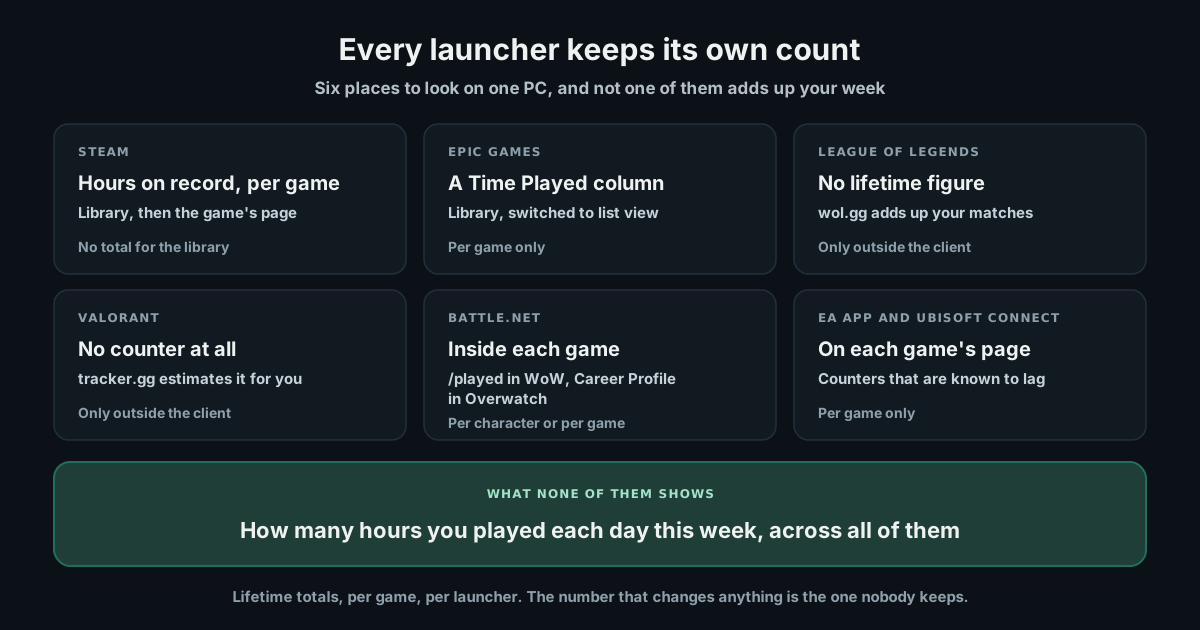
- Steam: open your Library, select the game, and read Play Time on its page. The Games page on your profile lists the hours for every game you own.
- Epic Games Launcher: in your Library, switch to list view for a Time Played column, or open a game's three-dot menu to see You've Played.
- League of Legends: the client has no lifetime total, so sites like wol.gg add up the matches in your history instead.
- Valorant: there is no counter in the game, so tracker.gg estimates your hours from your matches.
- Battle.net: hours live inside each game, such as typing /played in World of Warcraft or opening your Career Profile in Overwatch.
- EA app and Ubisoft Connect: each game's page or statistics shows play time, though both counters are known to lag.
- Everything at once: no launcher does this, which is what the rest of this guide is for.
How to check hours played on Steam
Steam keeps the most complete record of any PC launcher, so for most people it holds the biggest number of the lot.
For one game
Open the Steam app, go to your Library and select the game. Its page shows Play Time beside the date you last played it. Your profile shows the same figure as hours on record.
For every game you own
On your Steam profile, open the Games page, choose All Games and sort by playtime. It is the quickest way to see where the hours have actually gone, and the game at the top is often a surprise. If it is one you have been trying to put down, we have written about the hooks in Counter-Strike 2 and Dota 2.
For your whole library
Steam does not add your games together. To get a grand total you either add them up yourself or paste your profile into a third-party hours calculator, which only works if your Game details are public in Steam's privacy settings. Steam also has a separate option to keep your total playtime private even when your game details are visible, so a calculator may not be able to read your hours for that reason either.
For the last two weeks and the last year
Your profile also lists recent activity as hours over the past two weeks, which says far more about your habits than a lifetime figure does. Once a year Valve publishes Steam Replay, a summary of your year with playtime broken down by month and by game. It leaves out time played offline and anything that is not a game.
What Steam actually counts
Two things are worth knowing. Steam measures how long a game is running, not how actively you are playing, so a game left open in a menu or minimised behind a browser keeps adding hours, which is exactly how people farm hours by idling. And it only counts games launched through Steam, so anything you play through another launcher never shows up there.
How to check hours played on Epic Games
The Epic Games Launcher tracks playtime too, and Epic's help page for the launcher gives two ways to see it. In your Library, select the list view icon and a Time Played column appears beside every game you have played. Or open the three-dot menu next to a single game and look for You've Played.
Like Steam, it gives you a figure per game rather than one total for your library. Fortnite players can also follow Epic's separate guide to Fortnite playtime.
How to check hours played in League of Legends
The League client does not show a lifetime playtime total, so most players use an outside site for it.
The usual one is the wol.gg playtime site, which reads the matches in your Riot match history and adds up how long each one lasted. Enter your Riot ID and region and it returns a total in hours and days. Treat it as a floor rather than an exact figure: it can only count the matches it can see, and older seasons may be missing.
If the site is down, a rough estimate is your number of games multiplied by about half an hour, which is roughly how long a typical match runs. If League is the game behind most of those hours, how to quit League of Legends goes through why the ladder is so hard to step off.
How to check hours played on Valorant
Valorant has no playtime counter of its own, in the game or in the Riot Client.
The standard workaround is tracker.gg for Valorant, which builds a profile from your match history and shows an hours figure next to your other stats. You may need to sign in with your Riot account before your profile appears. Guides disagree on whether the figure includes time spent in menus and queues, so read it as an estimate rather than a measurement.
If that number is part of why you are reading this, our Valorant guide covers the revenge queue and why uninstalling never seems to hold.
Battle.net, EA app, Ubisoft Connect and GOG Galaxy
The other big launchers each keep a figure somewhere, though rarely where you would look first.
- Battle.net keeps your hours inside each game rather than in the launcher. In World of Warcraft, type /played in the chat box to see that character's total time played, then repeat it for every character you want to add up. In Overwatch, your Career Profile shows your total hours played.
- The EA app shows play time on each game's page, just under the date you last played it, though EA's own forums have threads about the counter getting stuck or falling behind.
- Ubisoft Connect keeps playtime in each game's statistics, and Ubisoft support has told players those stats can take up to 48 hours to update.
- GOG Galaxy can pull games from other launchers into one library through its integrations, which makes it the nearest thing to a combined list on PC. How much playtime it brings in depends on each integration.
If /played came back in days rather than hours, quitting World of Warcraft explains why the game is built to keep you subscribed through the months you barely play.
Does Windows keep track of how long you play?
Not for your own account. Windows has no built-in screen that shows hours played per game. Task Manager's App history tab is sometimes suggested, but it measures how much processor time an app used, which is a different thing from how long you sat in front of it.
Microsoft Family Safety does report time spent in apps and games, but only for members of a family group, set up by whoever manages it. That is the same two-person design we covered in how to limit gaming time on PC: it is built for parents, not for adults keeping an eye on themselves.
Why the number on your profile is not the one you need
Once you have found your hours, it is worth being clear about what they can and cannot tell you.
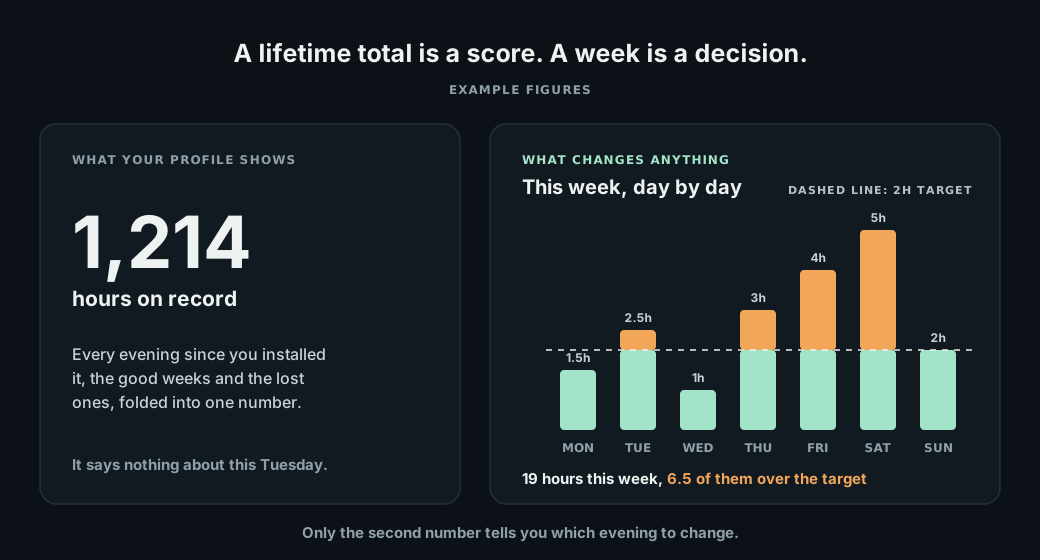
A lifetime total is a score. It folds every evening since you installed the game into one number, the good weekends and the lost weeks together, and it says nothing about this week. It also counts time the game sat open in a menu, and it is split across however many launchers you use, so the real total for your PC is almost always bigger than any single figure you find.
The tempting fix is to estimate, and that works least well of all. A 2021 meta-analysis of 106 comparisons between self-reported and logged screen time found that what people say they do is only moderately related to what their devices record, and rarely an accurate reflection of it.
The number that can actually change something is smaller and much more recent: how many hours you played each day this week, across every launcher, measured rather than remembered. A daily figure maps onto decisions you can still make. A lifetime figure is a fact about the past.
How to get one honest total for your whole PC
There are two ways to get it, and the first one is free.
By hand
Pick a day each week and write down what each launcher says for the games you played, then subtract last week's figures. The two-week total on your Steam profile makes this easier. It works, but it takes discipline every week, and it still misses any game a launcher does not count.
Automatically, with the Gaming Reset Windows app
This is the gap the Gaming Reset Windows app was built to close. It notices when a game starts from Steam, the Epic Games Launcher or the Riot Client, plus any other game you add by hand, and times each session on your PC.
- It keeps one daily total across all of them, and your dashboard shows the last seven days side by side.
- Like Steam, it counts the time a game is running, but it leaves out any time your PC spent asleep, and it drops sessions shorter than a minute, so a failed launch does not count.
- A day the app was not running shows as not tracked, so an empty day never passes for a clean one.
- The totals it sends to your account do not say which game they came from. A game's name is only sent when the app steps in on a launch.
It is the same app that steps in when a launcher opens and holds you to a daily target you agreed to, which our guide to limiting gaming time on PC walks through in full. Requirements and availability are on the Windows app page.
What to do with the number once you have it
If you want to see what a daily average adds up to over a year, put it into the gaming time calculator, which turns hours a day into days and years. It is a sobering exercise and a useful one, as long as it does not turn into a verdict on you.
The total on its own is not the verdict. Our answer to how many hours of gaming is too much makes the case that what the hours are pushing out of your life matters far more than the hours themselves. Two people with the same number can be in completely different places.
And if the number is the reason you came looking, that is worth listening to. Most people who go looking for their hours already suspect what they will find. The useful next step is not a better counter. It is deciding what this week should look like, and then measuring that.
Frequently asked questions
How do I see my total hours on Steam?
Steam shows hours per game but no total across your library. Open your profile, go to the Games page, choose All Games and sort by playtime to see every game's hours. For one grand total, add them up yourself or use a third-party hours calculator, which needs your Game details set to public in Steam's privacy settings.
Does Steam count hours when a game is idle or minimised?
Yes. Steam measures how long a game is running rather than how actively you are playing, so time spent in a menu, paused or minimised behind another window still counts. That is why idling a game can inflate its hours, and why your Steam figure can sit well above the time you remember playing.
Can you see how many hours you have played on Valorant?
Not inside the game. Valorant and the Riot Client do not show a playtime figure. Third-party sites such as tracker.gg estimate it from your match history, and you may need to sign in with your Riot account first. Treat the result as an estimate, since guides differ on whether time in menus and queues is included.
How do I check my total hours on League of Legends?
The League client does not show a lifetime total. Sites such as wol.gg add up the length of every match in your Riot match history once you enter your Riot ID and region. It is best read as a floor, because older seasons may be missing. Multiplying your games played by about half an hour gives a rough estimate if the site is unavailable.
How do I see hours played on the Epic Games Launcher?
Go to your Library and switch to list view, which adds a Time Played column for every game you have played. You can also open the three-dot menu next to a game and look for the You've Played field. Like Steam, Epic gives hours per game rather than one total for your whole library.
Does Windows keep track of how long I play games?
Not for your own account. Windows has no built-in per-game playtime figure, and Task Manager's App history tab measures processor time, not how long you played. Microsoft Family Safety reports app and game time only for members of a family group. For a measured total of your own play, you need the launchers' figures or an app that times your sessions.
Can I see my hours across every launcher in one place?
Not from any launcher. GOG Galaxy can import games from other launchers into one library, but how much playtime it brings in depends on each integration. The Gaming Reset Windows app measures sessions from Steam, Epic Games and Riot, plus any game you add yourself, as one daily total, with the last seven days shown on your dashboard.